
Using the Aphelion™ ActiveX Components (cont'd)
Integrating Image Processing capability into an application has never been so simple. Let's just guide you through a few steps showing how to develop a Visual J++ application which calls for the Aphelion ActiveX components.
1) Create a new Project
After starting Visual J++, create a new Windows Application
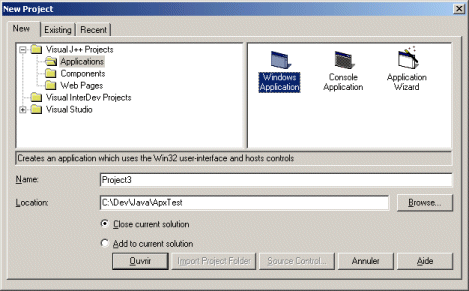
2) Insert the ActiveX components
- Select the Aphelion components to insert in the form
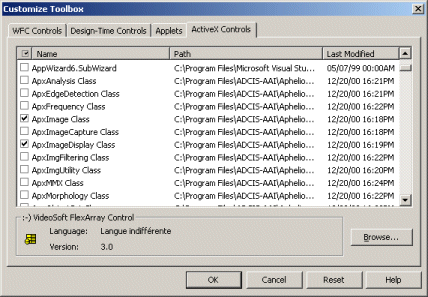
- Then, create a Visual J++ form, and insert the components. In our example, we placed the ApxImageDisplay and the ApxImage components to display an image.
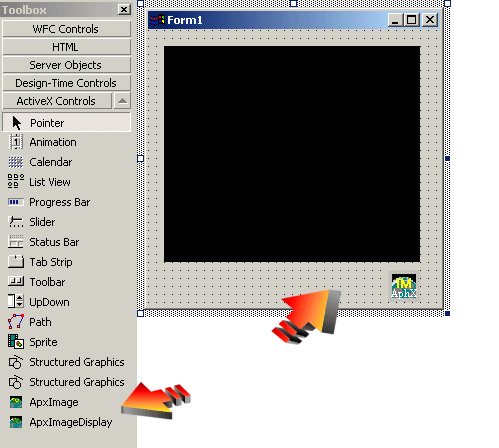
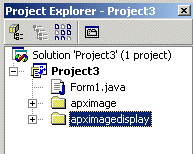
- Visual J++ creates the associated packages: apximage and apximagedisplay
3) Insert ApxObjects ActiveX Control and ATL Control
- Add COM Wrapper (Same as References in Visual Basic)
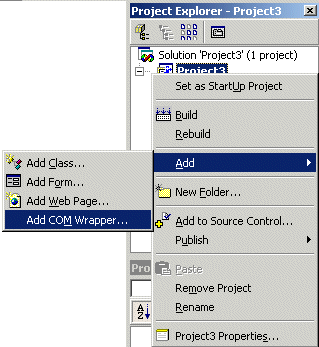
- Select ApxObjects and ATL

- Visual J++ creates 3 new packages: apxobjects, atl and stdole2
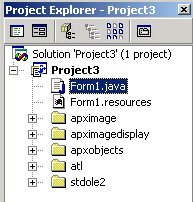
4) Implement the Application.
- The following code will load the image Blood.tif from the disk, and will display it in the ApxImageDisplay control:

5) Final Step
- Build the application and run it.
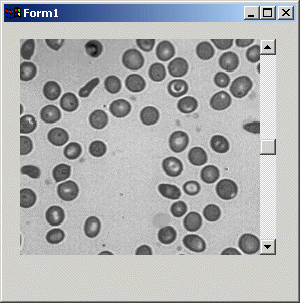
With the Aphelion ActiveX components, developing imaging applications has never been so easy, and so much fun.
Differences between Visual Basic / Visual C++ and Visual J++:
Using the ApxImage and ApxImageDisplay Controls to preview an image
Visual C++ Code
ApxImage1->Read("Blood.tif");
IDispatchPtr iDispatch(ApxImage1) ;
ApxImageDisplay1->put_Content(iDispatch);
Visual Basic Code
ApxImage1.Read "Blood.tif"
ApxImageDisplay1.Content = ApxImage1.Object
Visual J++ Code
this.apxImage1.Read("C:\\Blood.tif");
this.apxImageDisplay1.setContent(this.apxImage1.getOcx());